
How to add a world clock widget to your iPhone Home Screen and Lock Screen
Updated
Touch and hold an empty spot on the Home Screen, tap Edit, then Add Widget, search for Clock and pick the World Clock widget. To change its cities, touch and hold the widget, tap Edit Widget and tap each city. For the Lock Screen, touch and hold it, tap Customize, then add the Clock widget below the time.
Your iPhone already has everything you need to keep a few time zones in view: the Clock app's World Clock tab and a set of Clock widgets for the Home Screen and the Lock Screen. This guide walks through both, explains how to change the cities a widget shows, and covers the limits you'll hit if you follow more than a handful of places.
The steps below match iOS 26 and later. Apple moves buttons around between versions, so if a label looks slightly different on your phone, look for the closest match.
Step 1: add your cities to the Clock app
Apple's widgets are easiest to set up when the cities you care about are already in the Clock app.
- Open the Clock app and tap World Clock.
- Tap the + button and search for a city, for example London or Bengaluru.
- To reorder the list, tap Edit and drag the cities up or down. To remove one, swipe left on it.
Each row shows the city's current time and how far ahead or behind it is from you. Siri can answer a quick question too: “What time is it in Tokyo?”
Step 2: add a world clock widget to the Home Screen
- Go to the Home Screen page where you want the widget.
- Touch and hold an empty part of the background until the apps start to jiggle.
- Tap Edit (top left), then Add Widget.
- Search for Clock and tap it.
- Swipe through the sizes and styles. You'll see single-city clocks and a World Clock widget that shows four cities at once.
- Tap Add Widget, drag it into place and tap Done.
Change the cities on the Home Screen widget
- Touch and hold the widget.
- Tap Edit Widget.
- Tap the city you want to replace and search for a new one. On the World Clock widget, repeat this for each of the four slots.
- Tap outside the widget to finish.
A new Clock widget often starts with Cupertino and other default cities, so this edit is usually the first thing to do. The World Clock widget always fills all four slots. You can't leave one empty.
Step 3: add a world clock to the Lock Screen
Lock Screen widgets are small, but they're the quickest way to check another time zone without unlocking your phone.
- Wake your iPhone, then touch and hold the Lock Screen until Customize appears. If you're asked, unlock with Face ID or your passcode.
- Tap Customize, then choose the Lock Screen.
- Tap the widget area or Add Widgets.
- Scroll to Clock and pick a widget. The options include a single-city clock and a World Clock widget that shows three cities.
- Tap Done.
How to change the time zone on the Lock Screen widget
Open Customize again, tap the widget area and then tap the Clock widget itself. A panel opens where you can tap each city and search for a different one. If three cities aren't enough, the widget area has room for a second World Clock widget, which gives you six cities in total.
Other ways to see multiple time zones on iPhone
- Calendar: turn on Time Zone Override (Settings → Apps → Calendar) and pick a time zone. Events then stay at the times of that zone wherever you are, and you can set a different time zone for a single event when you create it.
- Today View: swipe right on the first Home Screen page to see the widgets you've added there, including Clock widgets.
Where Apple's Clock widgets fall short
The built-in widgets are fine for a quick glance, but people who work across time zones usually hit the same walls:
- Four cities at most on a Home Screen widget, three on a Lock Screen widget.
- No “what if”. The widgets show now. To find out what 3 pm in New York is for a colleague in Berlin, you still do the maths yourself or open another app.
- No names. A clock says “London”, not “Mum” or “Client”.
If none of that matters to you, stick with Apple's widgets. They're free, built in and reliable.
A third-party option: Timeslide
Timeslide is a world clock we make, built around the “what if” problem. Each city is a card. Drag any card sideways and one shared time moves across every city in 15-minute steps, with dates rolling over and each card's sky changing with the hour. Tap Now to jump back to the current time. You can rename a card to “Mum” or “Office” and the real city name stays visible in small type.
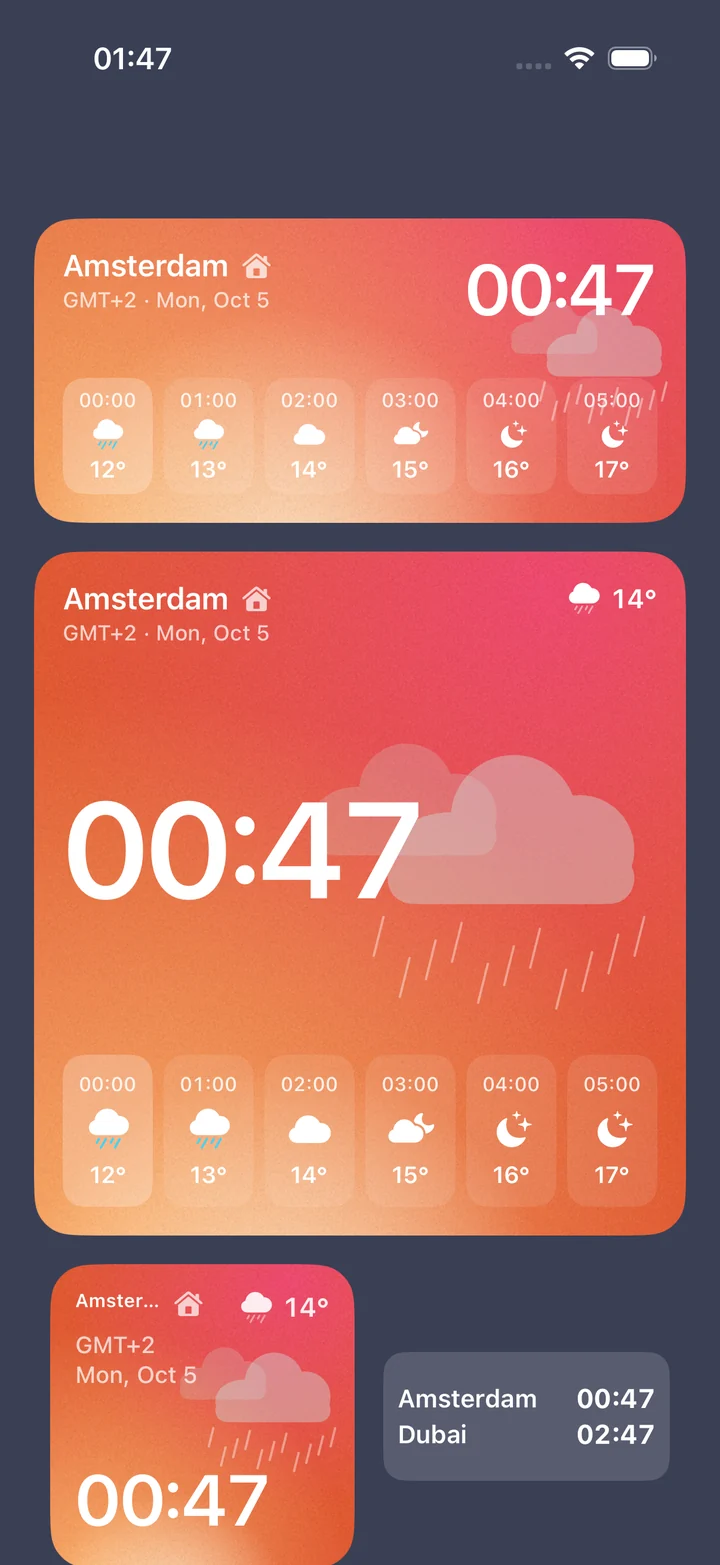
On iPhone it comes with its own widgets:
- City for one city, on the Home Screen and on the Lock Screen (round, rectangular, or a line of text above the time).
- Two cities side by side, on the Home Screen or as a rectangular Lock Screen widget.
- Cities for a list: up to four in the medium size and six in the large one, which also shows each city's day.
- Forecast for one city's time with the weather for the next hours.
Each widget can show any of the cities in your Timeslide list, with its own theme, 12- or 24-hour time and weather on or off. To set one up, add the widget the same way as above (search for Timeslide instead of Clock), then touch and hold it and choose Edit Widget.
Timeslide needs iOS 26 or later. It's free for up to three cities, with no ads and no account. More cities need Timeslide Pro.
FAQ
How many cities can the iPhone World Clock widget show?
The Home Screen World Clock widget shows four cities. The Lock Screen World Clock widget shows three, and you can add two of them to see six. For more than that, open the Clock app's World Clock tab, which has no practical limit.
How do I change the city on my iPhone clock widget?
Touch and hold the widget on the Home Screen, tap Edit Widget, then tap the city and search for a new one. On the Lock Screen, touch and hold it, tap Customize, tap the widget area and then the Clock widget to change its cities.
Why does my clock widget show Cupertino?
Cupertino is a default city in Apple's Clock widgets. Edit the widget and replace it with the city you want.
Do clock widgets adjust for daylight saving time?
Yes. iPhone uses each city's time zone rules, so the time and offset change on their own when a city's clocks go forward or back.
Can I name a city “Mum” or “Office” on an iPhone widget?
Not with Apple's Clock widgets, which always show the city name. Third-party world clocks such as Timeslide let you rename a city and use that name in their widgets.